
Product demos
Walk through a feature once. Zooms land on every click so viewers never squint.

Hit stop and it’s already edited. Zooms follow your clicks, your camera sits in frame, every word is captioned and the dead air is gone. Nothing gets uploaded.
Free on macOS, Windows and Linux, or run it in Chrome with no install.


A small bar while you set up, and a smaller pill while you record. On desktop, one shortcut starts and stops it, and Slipstream’s own controls never show up in the recording.
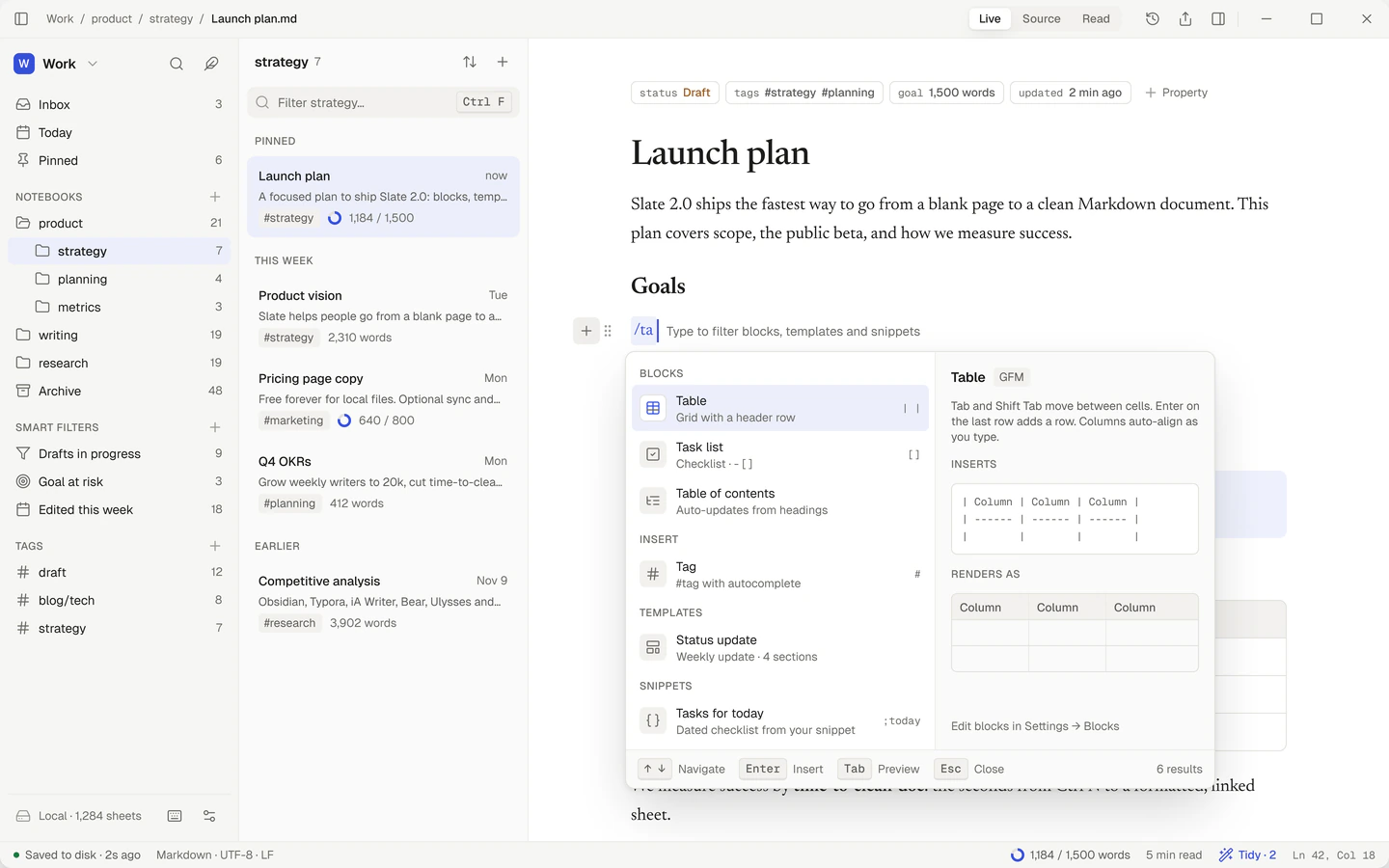
Slipstream records screen, camera and mic as separate tracks, then lays them out the way a good editor would. Nothing is baked in, so you can change any of it later.


The transcript is the timeline. Delete a sentence and the video follows. Every cut can be restored, and nothing touches your original files.
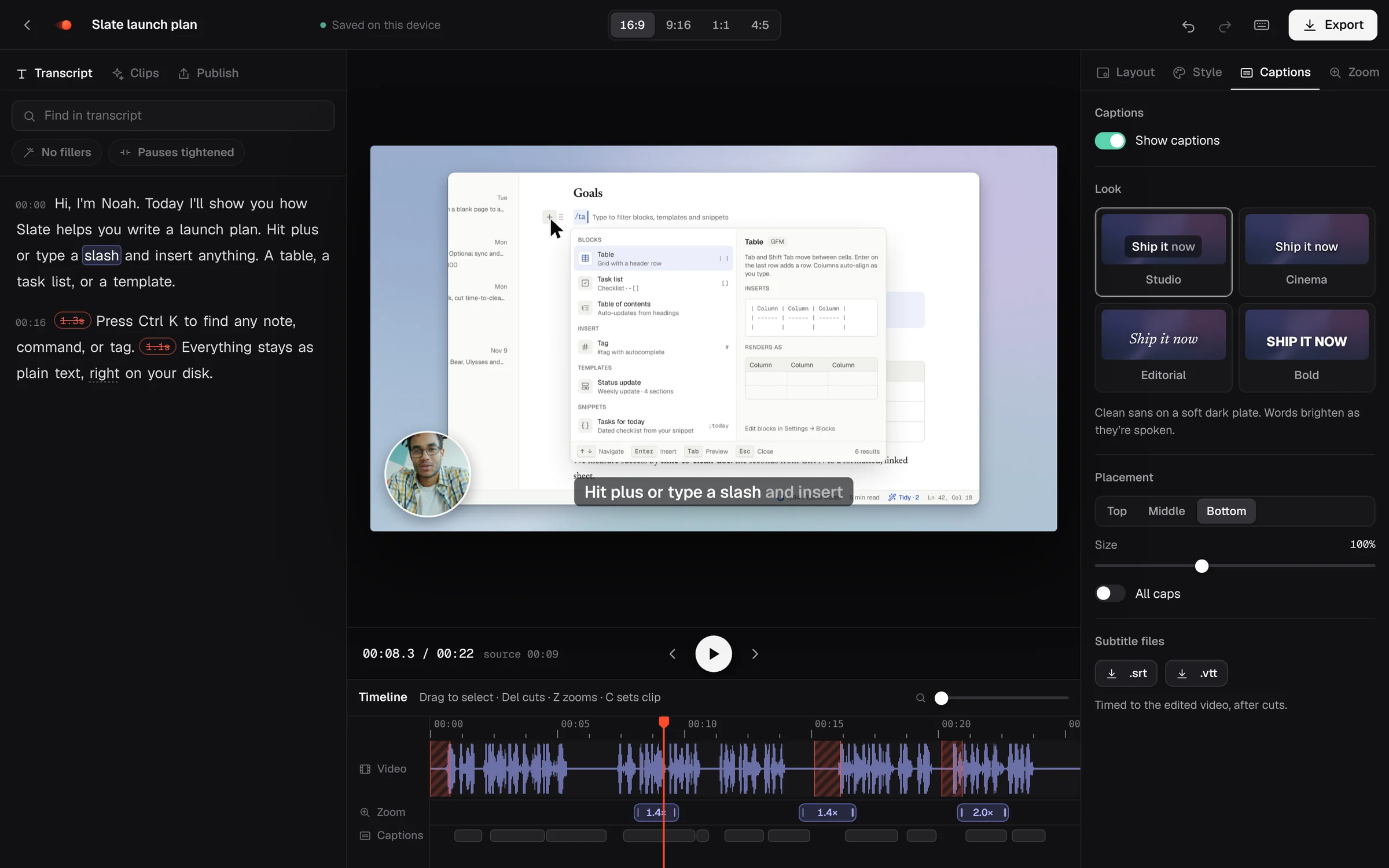
Switch from widescreen to vertical and Slipstream reframes the shot around your zooms and your face. Captions resize to match.



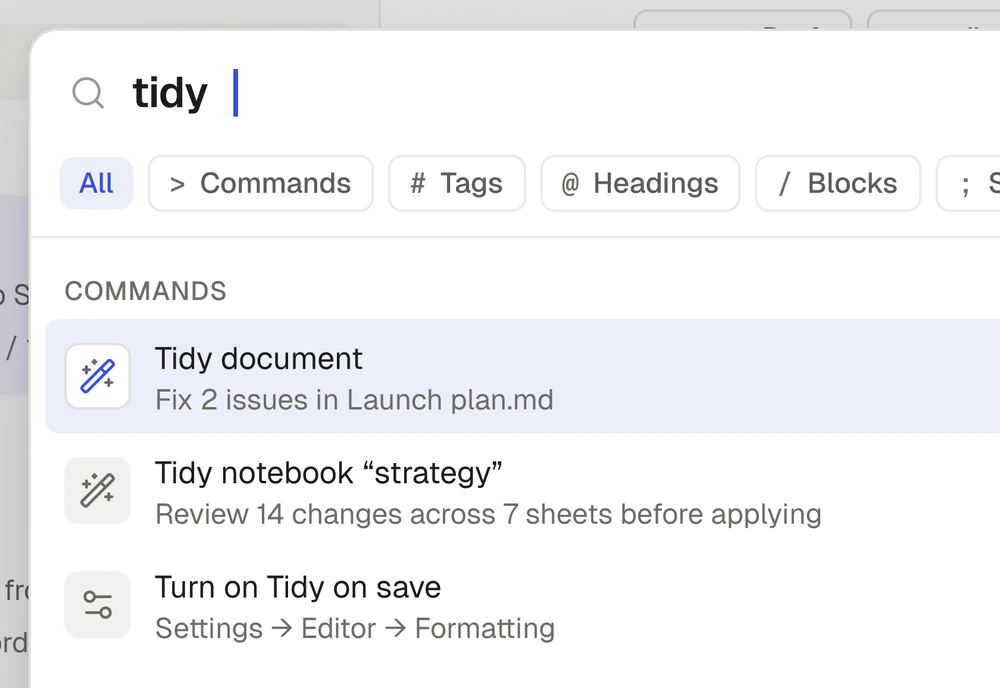

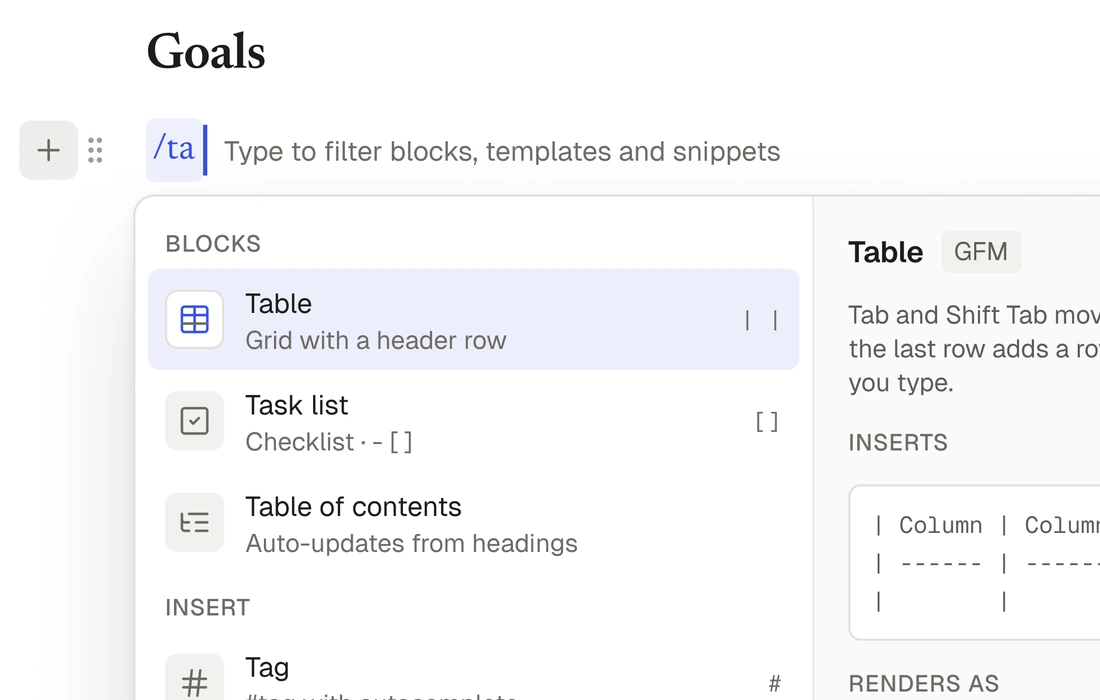
 Write first, format later.
Keep the wallpaper and soft shadow, or let the recording fill the frame edge to edge. You choose how much background shows.
Mix them: keep the wallpaper for the intro, then go full frame for a close-up demo.
Slipstream tightens each clip and cuts on the motion in it, in any shape. Add a song and the cuts land on the beat. It all runs on your computer.
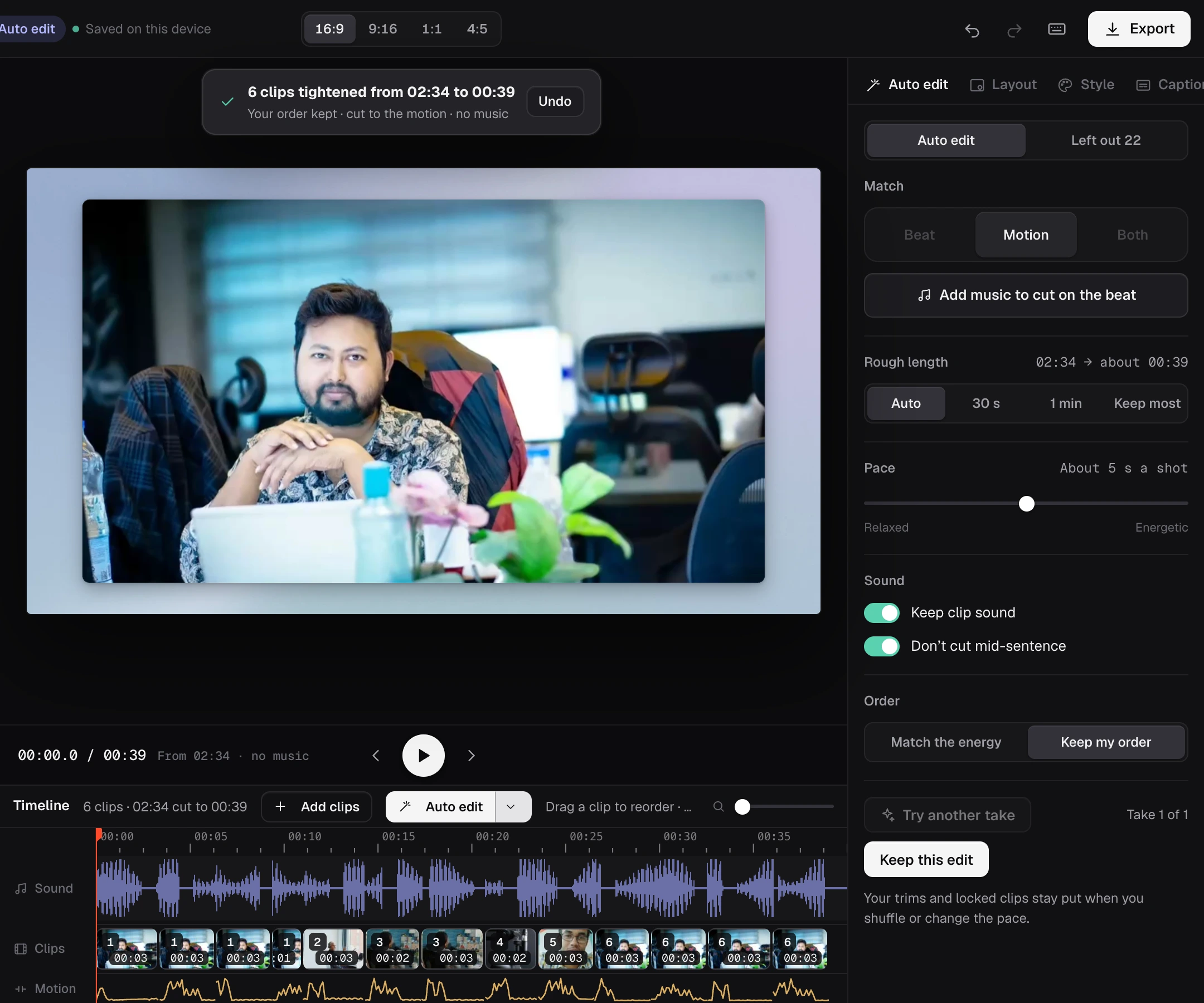
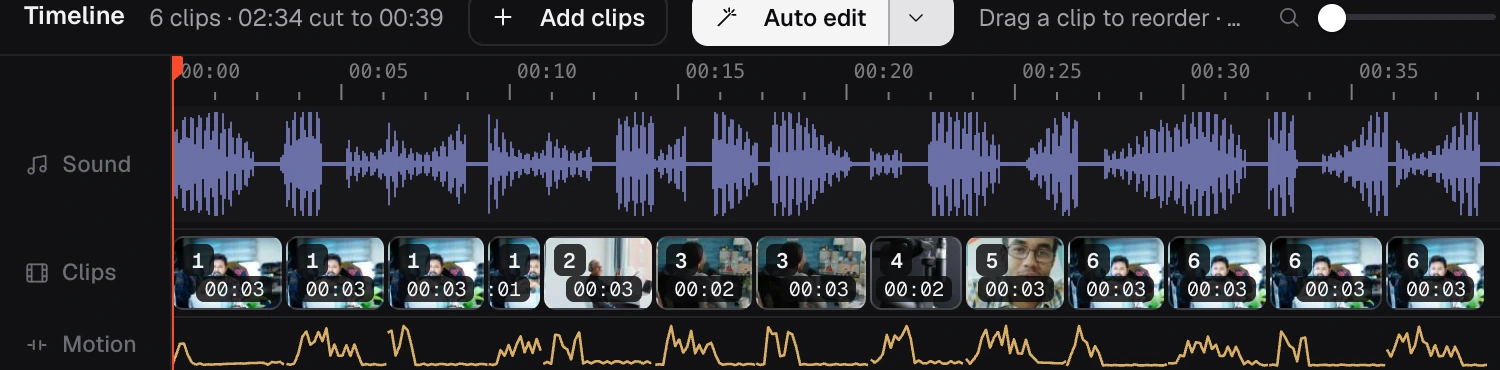
Cuts follow the motion in your clips. Your order and your sound stay.
Add a track from your computer. Cuts land on the beat, and each clip’s big moment lands on one too.
Keep most, or get it down to 30 seconds. For an hour-long workshop, pick 10 minutes and pauses and retakes go first.
Drag a clip’s edge to bring back what was cut. Your changes stay put when you try another take.
If you show your screen to teach, sell or ship, Slipstream takes the editing off your plate.
Walk through a feature once. Zooms land on every click so viewers never squint.

Record long lessons, then cut by transcript and export chapters for YouTube.
Turn a long take into vertical clips with clean captions and your face in frame.

Skip the meeting. Record a two-minute update that’s easy to watch and quick to share.
Slipstream scores what you say, how lively you sound and what happens on screen, explains each pick, and exports the top ones as reels in one go.
Drafts a title, description and YouTube chapters from what you said, using an on-device model where available.
Send the cut to Final Cut Pro, Premiere or Resolve as FCPXML, XML or EDL with the original media linked. On desktop and in the browser.
Hardware-accelerated export on Apple silicon, NVIDIA and Intel. MP4 or WebM in the browser.
Screen, camera and mic are recorded apart, so you can fix one without touching the others.
Cut, zoom, split and undo without leaving the keys. Every shortcut is listed in the app.
Cloud editors upload first and edit later. Slipstream records, transcribes, edits and exports on your own machine. When you do share a link, it goes to storage you control.
Whisper runs on your CPU or GPU. Your voice is never sent to a server.
Open it and record. There’s no sign-up, no usage cap and no logo stamped on your video.
Share from your own bucket or straight to one person. Links expire when you say.
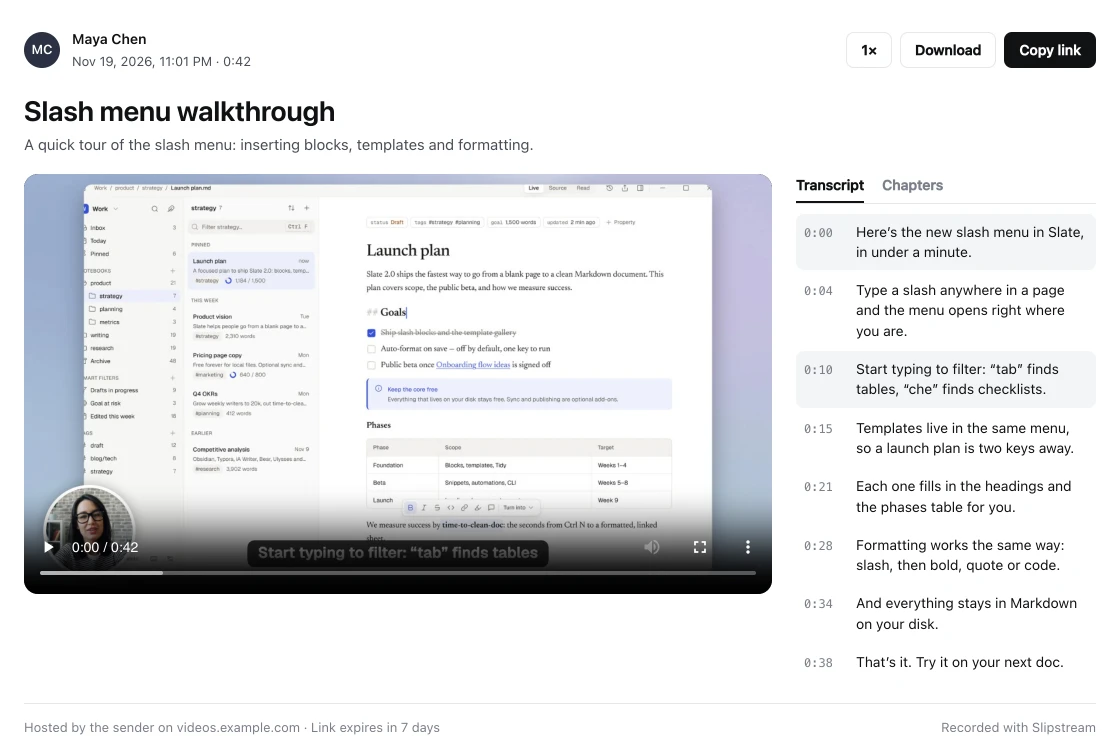
Record a tab, a window or your screen from Chrome’s toolbar. The link is ready when you stop, served from your own bucket, with no Slipstream server in between.
With no server in between, there are no viewer comments or reactions, no view counts and no team workspace.
The same edit runs everywhere: transcript cuts, zooms, layouts and captions.

A Swift app on macOS, and a Rust-powered app on Windows and Linux, with hardware encoding.
The full editor in a Chrome tab. Whisper runs on WebGPU and export uses WebCodecs. Nothing to install.
Record from the toolbar and share a link from your own storage. Works in Chrome, Edge, Brave and Arc.
The render engine is a command-line tool. Script batches, or let an AI agent drive the edit.
Most tools own one slice: a recorder, a transcript editor or a cloud repurposer. Slipstream covers capture, edit, captions and export on your own machine.
| Tool | Edits on-device | Browser version | Desktop app | Built-in recorder | Auto zoom | Edit by transcript | Captions | Price |
|---|---|---|---|---|---|---|---|---|
| SlipstreamRecorder and editor | Yes | Yes | Mac, Windows, Linux | Yes | Yes | Yes | Yes | Free |
| Screen StudioMac screen recorder | Yes | No | macOS only | Yes | Yes | Yes | Yes | $9/mo yearly, $29 monthly |
| CapOpen-source recorder | Local and cloud links | Chrome extension | Mac, Windows, Linux | Yes | Yes | Yes (since 0.6.3) | Yes | Free, Pro $12/mo |
| DescriptAI video and podcast editor | Cloud | Yes | Mac, Windows | Yes | No | Yes | Yes | Free tier, then from $16/mo |
| RiversideRemote recording studio | Records locally | Yes | Mac | Yes | No | Yes | Yes | Free tier, then from $24/mo |
| Recordly / OpenScreenOpen-source recorders | Yes | No | Mac, Windows, Linux | Yes | Yes | OpenScreen 2 | Yes | Free |
| RescriptOpen-source transcript editor | Yes | Yes | Desktop build | No | No | Yes | No | Free |
| OpusClipLong-to-short repurposer | Cloud | Yes | No | No | Reframe | Auto-clip | Yes | Free tier, paid plans |
| CapCutTemplate video editor | Cloud | Yes | Mac, Windows | Partial | Partial | Partial | Yes | Pro $19.99/mo |
| Eddie AIAgentic rough-cut editor | Cloud | Yes | Mac, Windows | No | No | Chat-driven | Yes | Credits from $10 |
Based on each vendor’s public pages as of November 2026. Features and prices change, so check the vendor’s site before deciding. “Edits on-device” means editing and AI run without uploading your footage.
Free on every desktop, with no account and no watermark. Prefer not to install anything? Open Slipstream Web instead.
x64 installer for Windows 10 and 11.
Native app for Apple silicon Macs.
x64 AppImage and Debian package.
For Chrome, Edge, Brave and Arc.
Slipstream is free, so it isn’t signed through Apple’s or Microsoft’s paid programs. Its first launch stops at a security prompt that looks like an error. It isn’t: confirm it once as shown here, and Slipstream opens normally from then on. The Chrome extension isn’t in the browser stores yet, so you load it yourself, as shown below.
curl -fsSL https://raw.githubusercontent.com/tanzir71/slipstream-releases/main/install.sh | bashslipstream-windows-x64-setup.exe, then click Run anyway.chmod +x as shown.sudo apt install ./slipstream-linux-x64.debslipstream-for-chrome.zip and move the Slipstream for Chrome folder somewhere it can stay, not Downloads.chrome://extensions (Edge: edge://extensions, Brave: brave://extensions; Arc uses Chrome’s page).Only confirm files you downloaded from this page or the Slipstream releases on GitHub. Each download has a SHA-256 file beside it if you want to check it.
Works in Chrome, Edge, Arc and Brave 120 or later. Records, transcribes and exports inside the tab, and your projects stay in that browser.
Your footage never leaves your machine.
Something missing? Open an issue on GitHub.
Yes. The desktop apps and Slipstream Web are free, with no account, no watermark and no usage caps.
No. Without music it cuts to the motion in your clips and keeps your order and sound. Add a song from your computer and the cuts land on the beat.
You pick a rough length. Auto keeps about a quarter of short footage. For long recordings, choose 5, 10 or 20 minutes and it cuts pauses, retakes and quiet stretches first, keeping sentences whole.
No. Links are served from a bucket you control, such as Cloudflare R2, Amazon S3, Backblaze B2 or any S3-compatible storage. The Chrome extension uploads there while you record, so the link is ready when you stop, and viewers get a page with captions, a transcript and chapters. You can also send a recording straight to one person, peer to peer.
Download the .zip, unzip it to a folder that can stay put, open chrome://extensions (edge://extensions in Edge), turn on Developer mode and choose Load unpacked. It’s a developer install until the extension is in the browser stores. See the steps.
Yes. Pick Window and choose the one you want (in Slipstream Web, the browser asks which). You can also record a whole display, an area you draw, or only your camera.
No. Recording, transcription, editing and export all happen on your computer. The desktop apps have no servers to send footage to. Slipstream Web keeps projects in your browser’s storage and renders with WebCodecs. If you share a link, the video goes to a bucket you choose.
Only code and the speech model. The first time you transcribe, it fetches the transcription library and a Whisper model (about 40 to 250 MB, depending on the quality you pick) from public CDNs. Your browser caches them and your audio is processed locally. You can also import an SRT or VTT file instead.
Desktop Chrome, Edge, Arc, Brave and other Chromium browsers (version 120 or later) support everything: recording, WebGPU transcription and MP4 export. Safari and Firefox support is partial while their WebCodecs support catches up, so use the desktop app there.
Slipstream is free and isn’t notarized (that needs Apple’s paid developer program), so macOS asks once for apps downloaded in a browser. Open it once, then go to System Settings → Privacy & Security and click Open Anyway. Or install from Terminal, which skips the prompt: curl -fsSL https://raw.githubusercontent.com/tanzir71/slipstream-releases/main/install.sh | bash (it checks the download’s SHA-256 and signature first).
That’s Microsoft Defender SmartScreen, which shows it for new apps without a paid code-signing certificate. Click More info, check the app is slipstream-windows-x64-setup.exe, then click Run anyway. You only do this once per download.
Windows 10 or 11 (x64), an Apple silicon Mac with macOS 26 or later, or Linux x64 via AppImage or DEB. Camera effects like Center Stage and Portrait need supported Mac camera hardware and are captured automatically by the macOS build.
Each of those owns one slice: a Mac-only recorder, a cloud transcript editor, or a cloud repurposer. Slipstream does capture, transcript editing, zoom, camera layouts, captions and export in one local-first app, on every desktop OS and in the browser. See the comparison above.